You just bought a new smart thermostat. The setup app searches for your Wi-Fi network, finds it, and then… nothing. Connection failed. You try again. Same result. Frustrated, you check the manual and find this line: “Requires 2.4GHz Wi-Fi connection”. Your router uses both 2.4GHz and 5GHz, so what’s the problem?
This scenario plays out thousands of times daily as people set up smart home devices. The confusion stems from how modern routers handle these two frequency bands and why so many smart devices stubbornly insist on 2.4GHz. Understanding which band your devices need and how to actually connect them makes the difference between a smooth setup and an afternoon of troubleshooting.
This guide explains the practical differences between 2.4GHz and 5GHz Wi-Fi for smart home use, why device manufacturers make the choices they do, and how to solve the common connection headaches that drive people to consider returning perfectly good products.
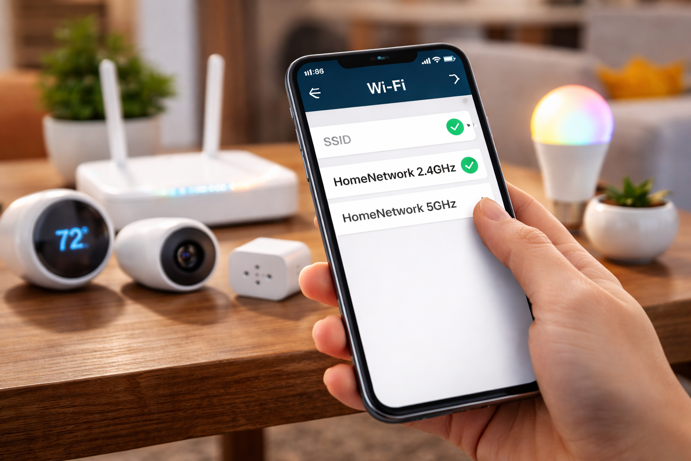
Why Do Smart Home Devices Use 2.4GHz Wi-Fi?
Smart home devices use 2.4GHz Wi-Fi because it provides longer range, better wall penetration, lower power consumption for battery operated devices and universal router compatibility compared to 5GHz. The 2.4GHz signal’s longer wavelength travels farther through obstacles and maintains reliable connections across typical home distances, which matters more for sensors and controls than raw speed.
The Fundamental Difference Between 2.4GHz and 5GHz
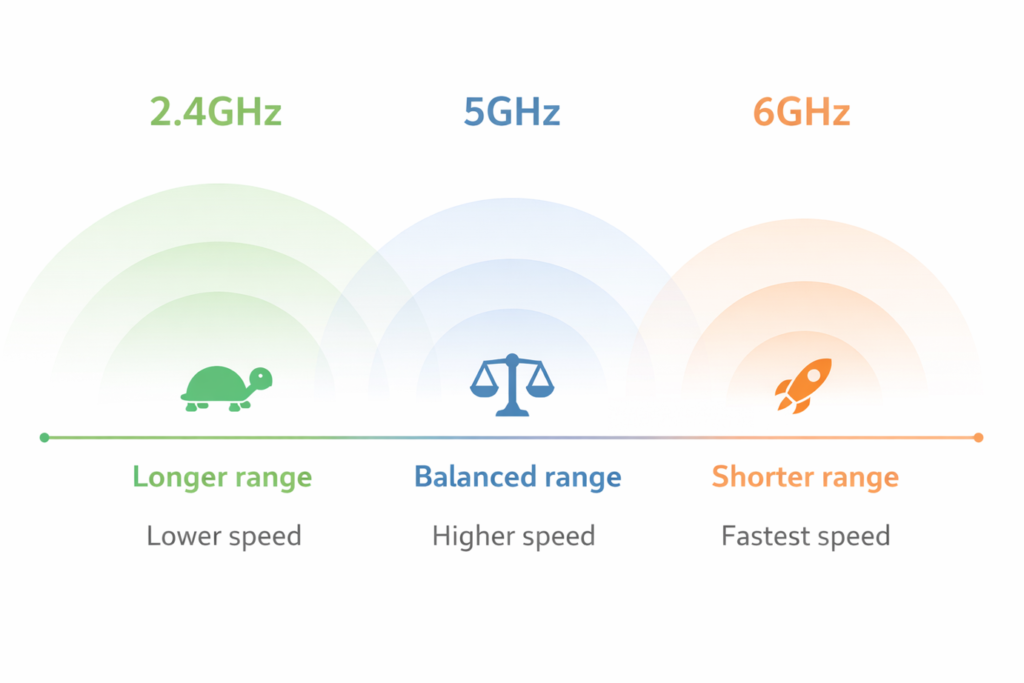
Wi-Fi uses radio waves to transmit data, and 2.4GHz and 5GHz refer to the frequency at which these waves oscillate. Lower frequencies (2.4GHz) travel farther and penetrate obstacles better, while higher frequencies (5GHz) can carry more data but over shorter distances.
The 2.4GHz band has been around since the original Wi-Fi standard in 1997. It operates across 70MHz of spectrum divided into channels, though only three of these channels don’t overlap with each other. This means in apartment buildings or dense neighborhoods, everyone’s 2.4GHz networks compete for the same limited space.
The 5GHz band existed with earlier Wi-Fi standards but became mainstream with 802.11n in 2009 and later 802.11ac. It spans approximately 500MHz with 21 non-overlapping channels, offering far more room for devices to operate without interference. The trade-off here is range. Those higher frequency waves don’t travel as far or penetrate walls as effectively.
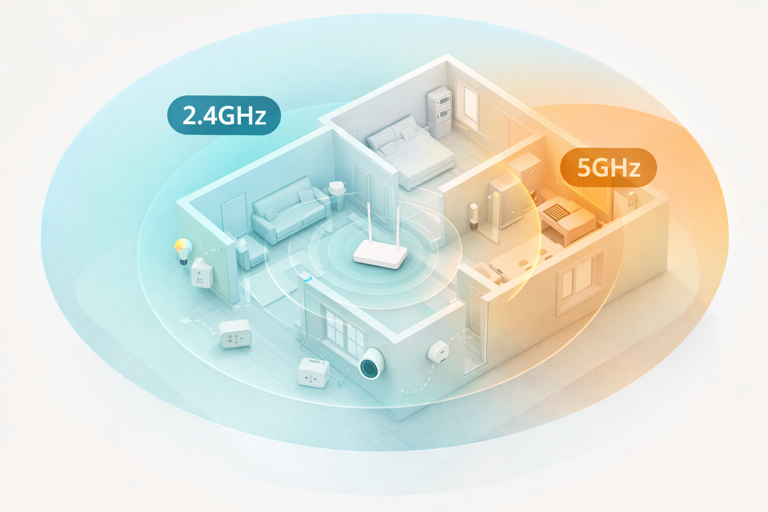
Why Smart Home Devices Prefer 2.4GHz
Walk into any store and you’ll find smart bulbs, plugs, cameras and sensors that work exclusively on 2.4GHz. There are practical engineering and economic reasons for this.
Range and penetration matter more than speed. A smart camera mounted outside or a motion sensor in a back bedroom needs reliable connectivity across walls and distance. The 2.4GHz signal’s longer wavelength bends around obstacles and maintains connection farther from the router. Your smart bulb doesn’t need to download 4K video. It just needs to receive a simple on/off command reliably.
Cost plays an important role too. Wi-Fi chips that support only 2.4GHz are substantially cheaper than dual band chips. When you’re manufacturing millions of smart plugs at a $15 retail price point, saving even a dollar per unit on components matters. Consumers expect affordable smart home devices and manufacturers deliver by using cost effective single band radios.
Battery powered devices benefit from 2.4GHz’s practical advantages for power consumption. Smart door sensors, motion detectors and wearables need to operate for months or years on small batteries. In practice, 2.4GHz radios often achieve better battery life because they maintain stable connections at lower transmit power, especially over longer distances where 5GHz would require more power or frequent reconnections.
Backward compatibility ensures devices work in any home. Since the 2.4GHz band has been around longer, every router supports it. A device manufacturer using 5GHz would immediately exclude customers with older routers, limiting their potential market.
When 5GHz Makes Sense for Smart Devices
Not all smart home devices stick to 2.4GHz. Bandwidth-intensive applications benefit significantly from 5GHz’s higher data rates.
Video doorbells and security cameras streaming high definition video perform better on 5GHz, especially models offering 1080p or 4K resolution. The wider bandwidth prevents stuttering and maintains video quality during peak usage times. However, this only works if the device is relatively close to a router or mesh point. That outdoor camera at the far end of your property will struggle with 5GHz.
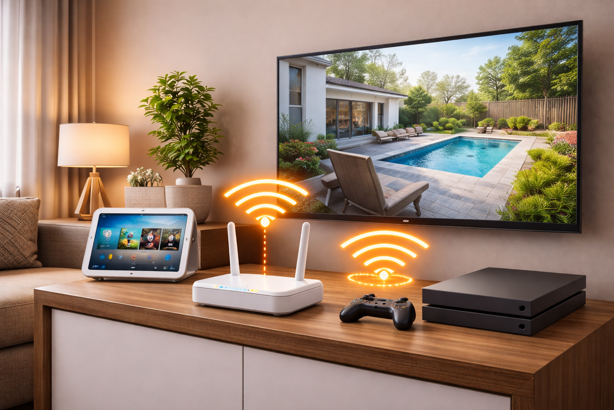
Smart displays and hubs like the Amazon Echo Hub or Google Nest Hub often support dual band Wi-Fi. When streaming music, video or handling voice commands, the extra bandwidth and reduced interference of 5GHz improve responsiveness. These devices usually stay in fixed locations near power outlets, making the shorter range less of a concern.
Gaming consoles and streaming devices that support both bands generally perform better on 5GHz in homes with clear line of sight to the router. The reduced latency and higher throughput deliver smoother gameplay and faster load times.
The Setup Problem: Band Steering and Merged Wi-Fi Networks
Here’s where theory meets frustrating reality. Modern routers and mesh Wi-Fi systems use a feature called band steering, which automatically directs capable devices to the optimal frequency band. This works brilliantly for phones and laptops that support both bands.
The problem emerges during smart device setup. Your phone connects to the 5GHz network because it’s faster and you’re standing right next to the router. When you open the smart bulb’s app to configure it, the app often defaults to connecting the device to the same network your phone is using, the 5GHz band. The app then tries to connect the bulb to this 5GHz network, but the bulb doesn’t support 5GHz. Setup fails with an error message that offers little useful information about what went wrong, leading many people to assume the device is defective when it’s actually working perfectly.
Many mesh systems combine both frequency bands under a single network name (SSID). This simplifies your network list but makes it impossible to manually select which band to connect to. Some systems like TP-Link Deco and Google Wifi don’t allow separating the bands at all, turning what should be a simple device setup into a technical obstacle course. This isn’t user error. It’s a side effect of how modern routers hide network complexity for a more hassle-free user experience.
Band steering isn’t standardized. Each manufacturer implements it differently. What works reliably on one router may fail completely on another, and troubleshooting becomes guesswork since you can’t see which band devices are using without digging into router settings.
Practical Solutions for Connecting 2.4GHz-Only Devices
If your router allows it, create separate network names (or SSIDs) for each band. Most traditional routers let you disable the unified SSID and instead broadcast distinct networks like “YourNetwork-5G” for 5GHz and “YourNetwork-2.4G” for 2.4GHz. Connect your phone to the 2.4GHz network temporarily during smart device setup, then switch back to 5GHz afterward.
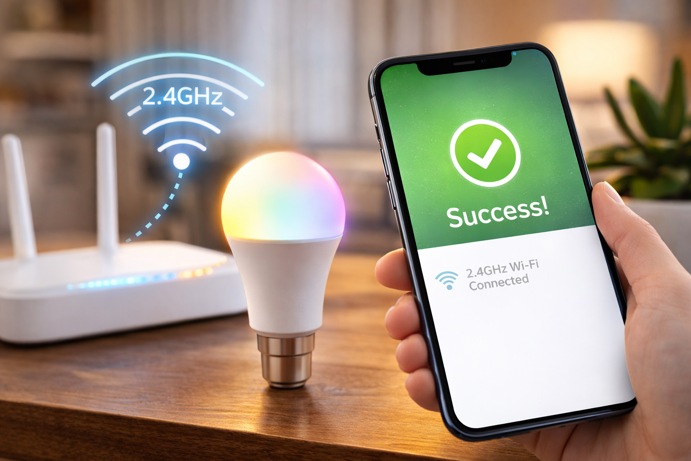
The guest network workaround works on many mesh systems that won’t separate bands. On some routers and mesh systems, guest networks operate primarily on 2.4GHz. Connect your phone to the guest network temporarily, complete the device setup there, and the device will remain on that network. If you want the device on your main network instead, you’ll need to reconfigure its Wi-Fi settings after initial setup, or (if your router allows it) temporarily set the guest network’s name and password to match your main Wi-Fi during setup so the device connects to the right one from the start.
Distance forcing can trick band steering. Walk to the edge of your Wi-Fi coverage (could be the far corner of your property or the opposite end of your home). At this range, 5GHz signal weakens or disappears entirely, forcing your phone onto 2.4GHz. Run the device setup process here and it should connect successfully.
Some routers like Amazon Eero offer a temporary 5GHz disable option buried in troubleshooting settings. This forces all devices to 2.4GHz for 10 minutes, which is plenty of time to complete setup. The 5GHz band automatically re-enables afterward.
As a last resort for stubborn devices, disable 5GHz completely in your router settings during setup. Complete the configuration, verify the device works, then re-enable 5GHz. Your other devices will reconnect to their preferred band while the 2.4GHz-only device continues working normally.
Network Congestion and Interference on 2.4GHz
The 2.4GHz band faces considerable congestion challenges, especially in apartment buildings or dense neighborhoods. With only three non-overlapping channels and dozens of nearby networks competing for space, interference becomes inevitable.
Common household devices add to the chaos. Microwave ovens operate at 2.4GHz and create massive interference when running. Bluetooth devices, cordless phones, baby monitors and some garage door openers all share this frequency range. Your neighbor’s Wi-Fi network likely overlaps with yours, degrading performance for everyone.
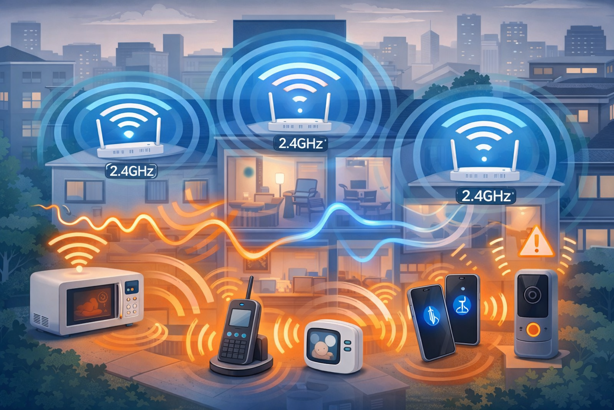
Devices using Zigbee or Bluetooth also operate on 2.4GHz, though these protocols use different modulation techniques than Wi-Fi. When you add smart home devices, you’re not just adding Wi-Fi traffic. You’re also introducing other wireless protocols that occupy the same spectrum. The Thread protocol uses 2.4GHz for its mesh networking, though it’s designed to coexist more efficiently with Wi-Fi.
Wi-Fi is a shared medium. When one device transmits, others must wait. Smart home devices at the edge of coverage or with weak signals communicate more slowly, using more airtime to send the same data. This effectively amplifies congestion. You might stream video to two devices near the router but manage only one device at the edge of coverage, not because of bandwidth limitations but because of the time required for slower devices to communicate.
Channel selection is crucial in crowded environments. Most routers automatically select channels, but they don’t always choose wisely. Accessing your router settings and manually selecting the least congested channel (normally 1, 6 or 11) can substantially improve performance. Many router apps include Wi-Fi analyzer tools that show channel congestion.
Strategic Device Placement Across Bands
For dual band routers, thoughtfully distributing devices across both bands optimizes overall network performance.
Reserve 2.4GHz for devices that genuinely need it, such as smart bulbs, plugs, switches, sensors and battery powered devices. These low bandwidth devices benefit from the extended range and don’t consume much airtime. Keeping them segregated also frees up 5GHz bandwidth for more demanding applications.
Assign bandwidth-intensive devices to 5GHz when they’re within good signal range. Streaming devices, gaming consoles, laptops actively downloading large files and video conferencing setups all perform better with 5GHz’s higher throughput and decreased interference. Smart displays and hubs located near your router should use 5GHz if supported.
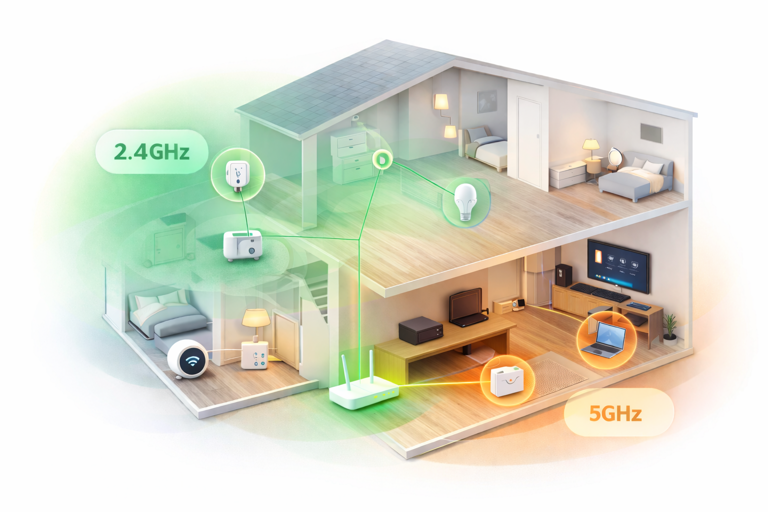
Consider mesh node placement carefully. Position mesh points to provide strong 5GHz coverage in high traffic areas like offices and living rooms where laptops and streaming devices congregate.
Does Your Smart Home Really Need 5GHz?
For many smart home setups, the honest answer is no. If your devices are primarily lights, switches, sensors, thermostats and similar low bandwidth products, 2.4GHz handles everything perfectly fine. These devices send tiny amounts of data (a simple on/off command, for example, is typically just a few bytes).
The 5GHz advantage becomes meaningful when you add high definition cameras, multiple streaming displays or smart home servers processing local video. These applications genuinely benefit from the extra bandwidth and reduced interference. But the basic connected home, the one with smart lighting, climate control and sensors, works reliably on 2.4GHz alone.
Future proofing considerations matter if you’re planning to expand. The smart home market increasingly supports dual band operation as chip costs decrease. Newer devices from major manufacturers often include 5GHz support even when they don’t strictly need it, giving you flexibility as your setup grows.
Matter over Wi-Fi can technically use either band, though many current Matter Wi-Fi devices still rely on 2.4GHz. Matter devices using Thread (which uses 2.4GHz) give you ultra-low power operation with extended range. The protocol’s flexibility means you’re not locked into a single approach.
Wi-Fi 6 and Beyond: What Changes?
Wi-Fi 6 (802.11ax) and Wi-Fi 6E enhance performance on both bands but don’t eliminate the fundamental physics governing range and penetration. The 2.4GHz band still travels farther and penetrates walls better. 5GHz still offers higher bandwidth.
What Wi-Fi 6 does improve is efficiency in crowded environments. Technologies like OFDMA (Orthogonal Frequency Division Multiple Access) allow the router to serve multiple devices simultaneously instead of sequentially. This helps when you have dozens of smart home devices competing for airtime.
Wi-Fi 6E adds a third band at 6GHz with even more channels and less congestion than 5GHz. However, 6GHz faces the same range limitations as 5GHz, possibly worse given the higher frequency. This makes 6GHz excellent for bandwidth-intensive devices close to your router but impractical for the distributed sensors and controls typical in smart homes.
Target Wake Time (TWT) in Wi-Fi 6 benefits battery powered smart devices by allowing them to sleep longer between transmissions while maintaining reliable connectivity. This feature works on both 2.4GHz and 5GHz, potentially making 5GHz more viable for battery powered devices in future products.
Get Back on the Right Wavelength
That 2.4GHz “limitation” you wrestled with during setup? It’s the reason your devices keep working reliably for years. For sensors, switches and controls scattered throughout your home, range and stability matter far more than raw speed.
Get through setup once. Get the bands right. Then your smart home stops being something you manage and becomes something you live with.
The best technology disappears. That’s the goal – and 2.4GHz helps make it possible.